Turn a Photo Into a Sketch or Drawing
Pencil sketch, charcoal, crosshatch, watercolor: Pikolor redraws your photo as if an artist had sketched it by hand — free to try in your browser.
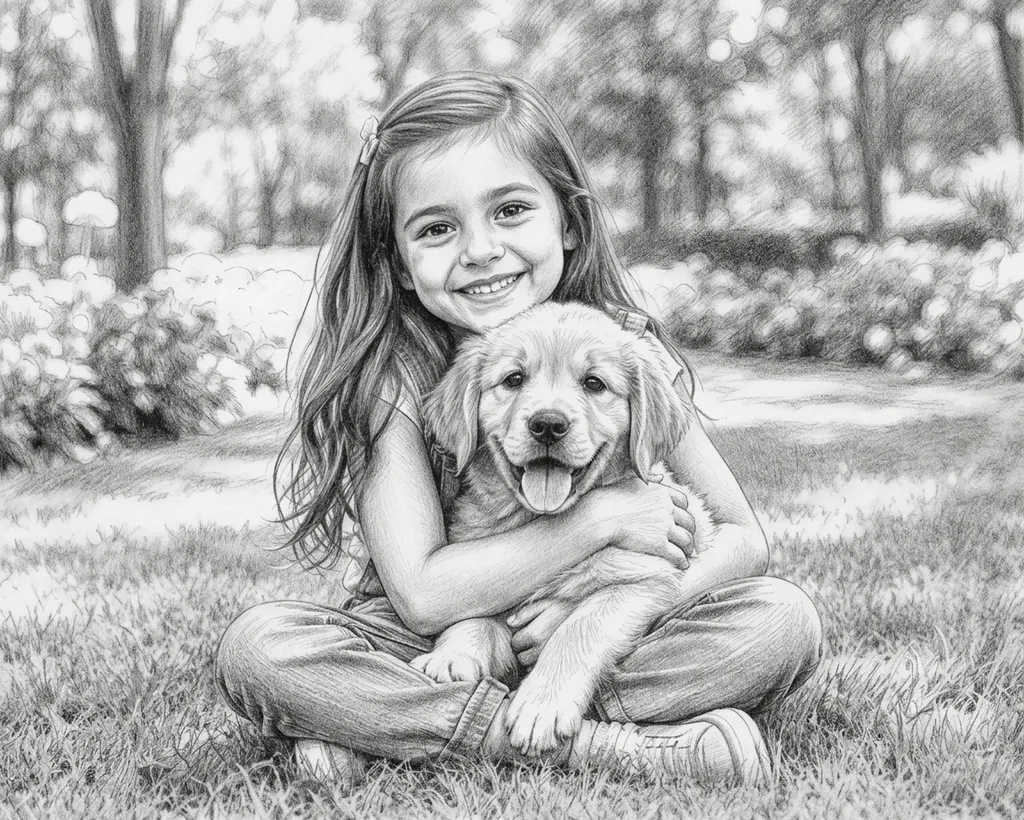
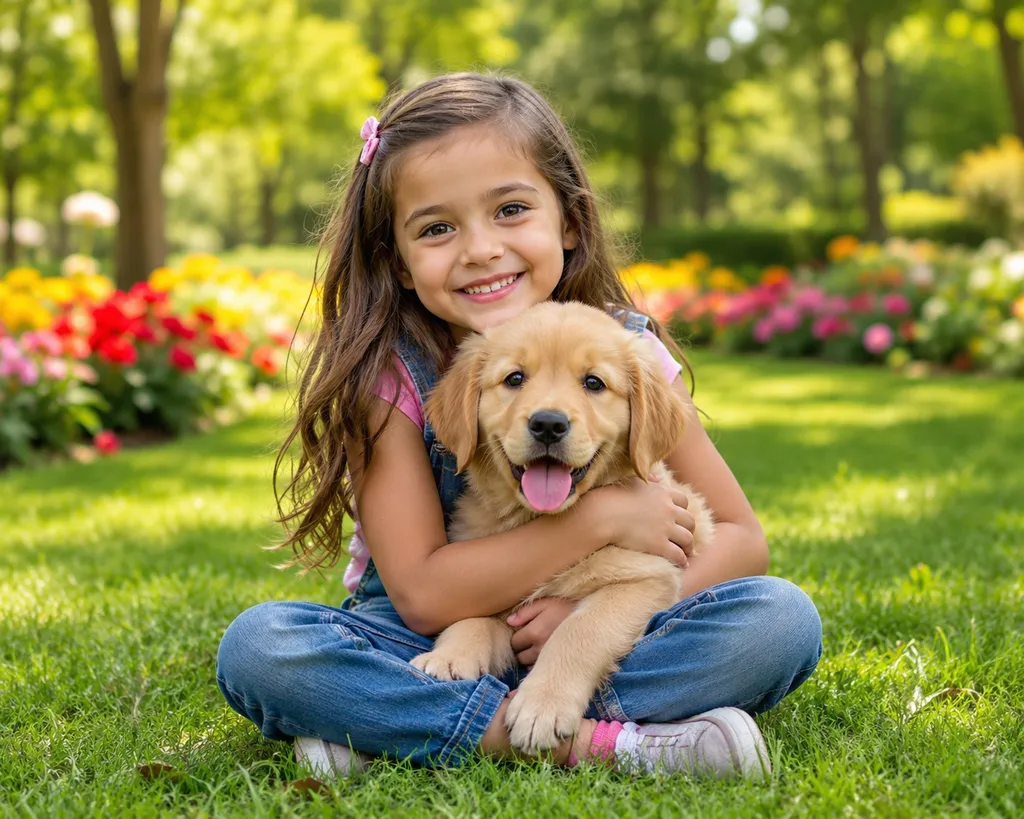
Real drawing styles, not a gray filter
Most "photo to sketch" filters just desaturate your picture. Pikolor actually redraws it: pencil strokes that follow the shapes, charcoal shading with real depth, crosshatch lines like an ink illustration.
The result looks like something off an artist's easel — from a single photo, in seconds.
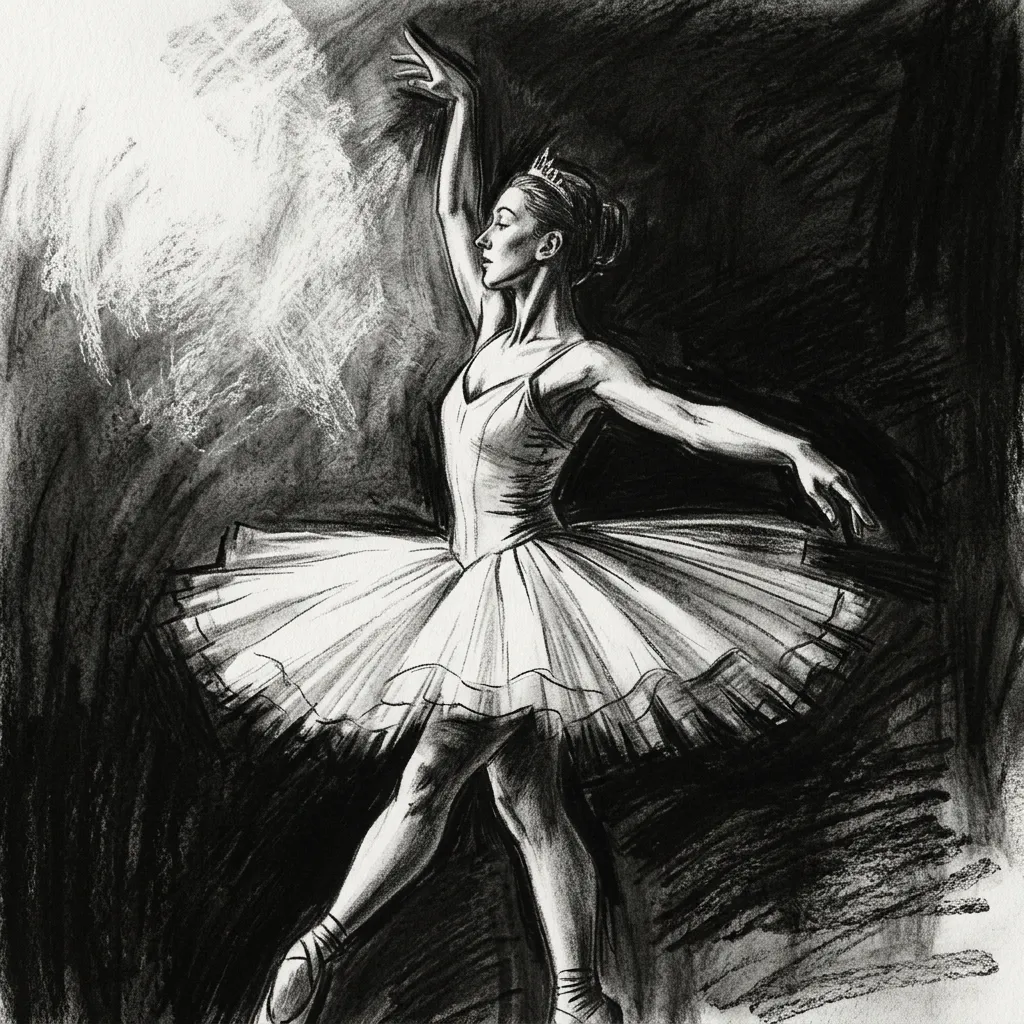
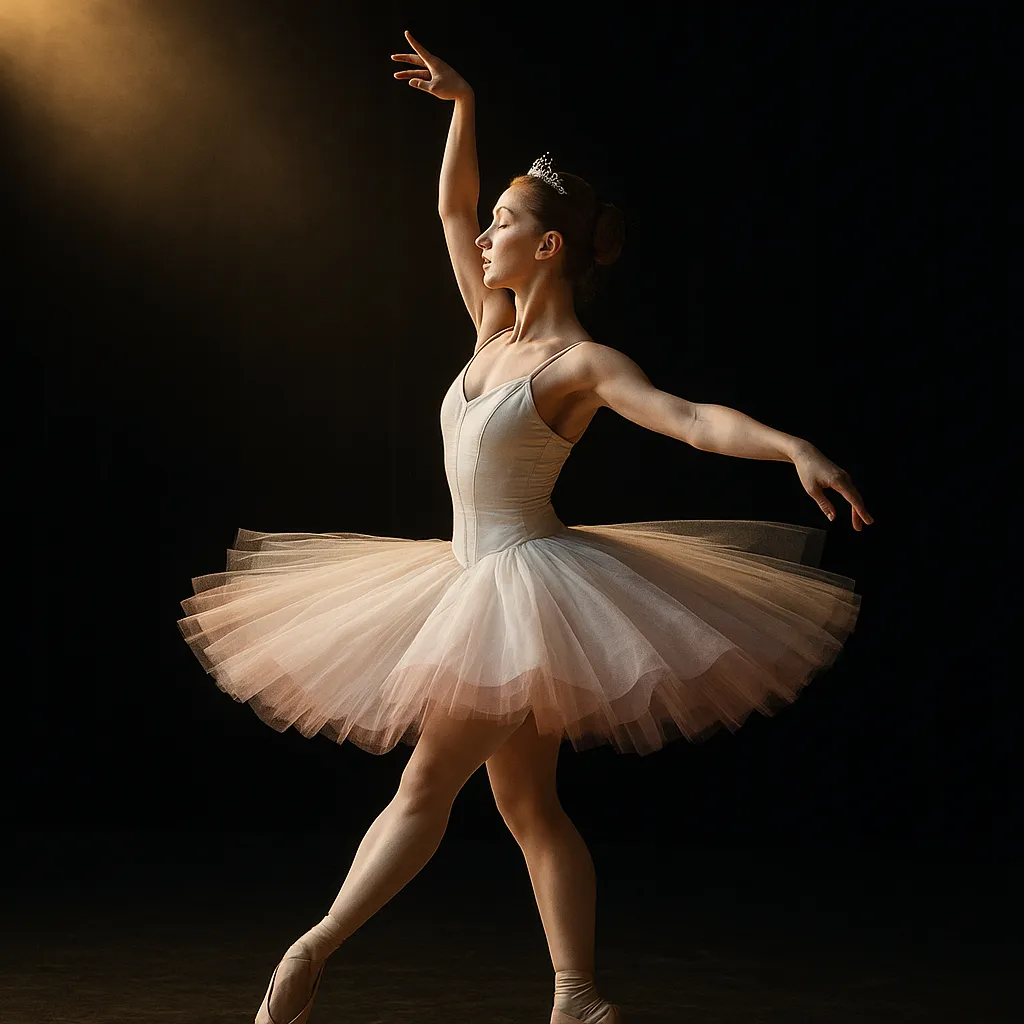
From portraits to wall art
Pencil sketches of portraits, charcoal pet drawings and watercolor family scenes print beautifully — a favorite for personalized gifts, memorial portraits and minimalist wall art.
Stencil style turns photos into bold high-contrast art for tattoo references and DIY projects, while Colored Pencil adds soft color to the hand-drawn look.
Six drawing styles to compare
Pencil Sketch is the classic graphite look, Charcoal adds dramatic shading, Crosshatch feels like an ink illustration, Stencil goes bold and graphic, and Colored Pencil or Watercolor bring color into the drawing. See them side by side:
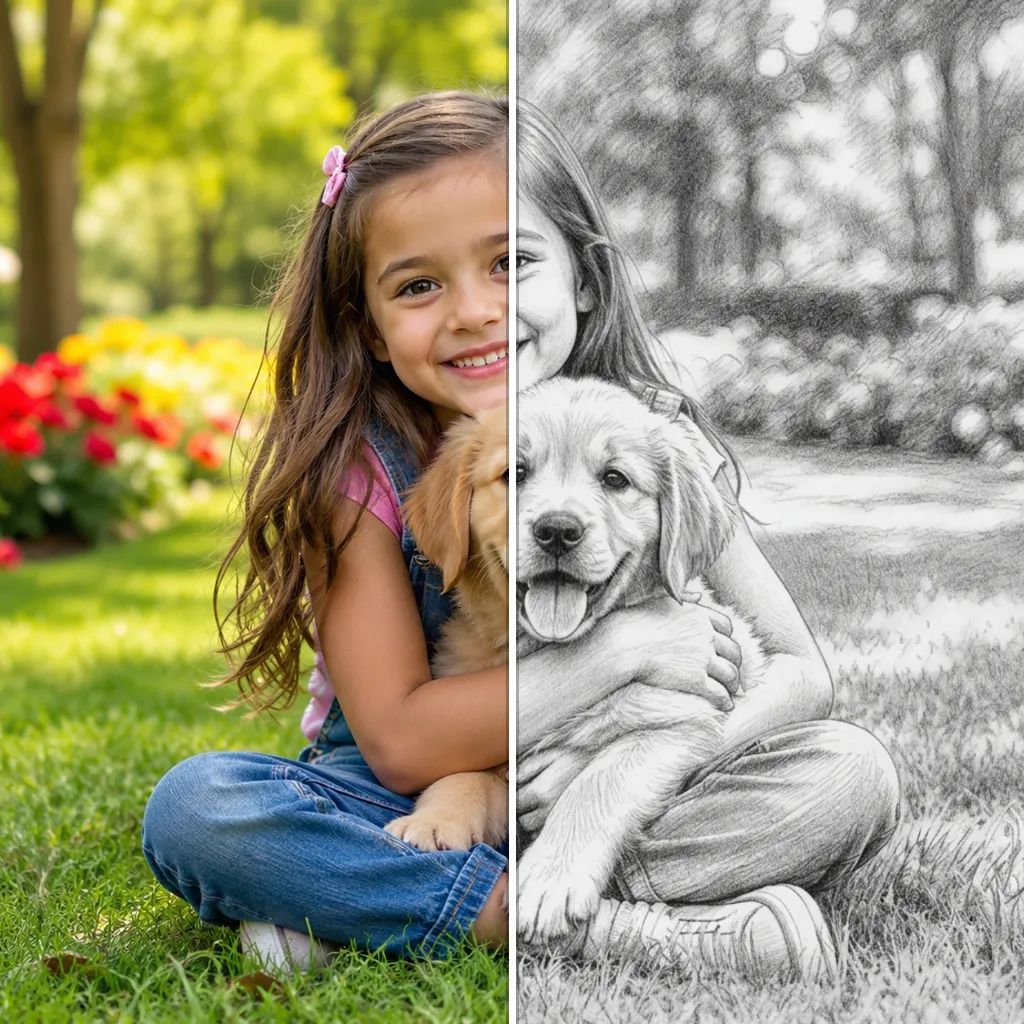
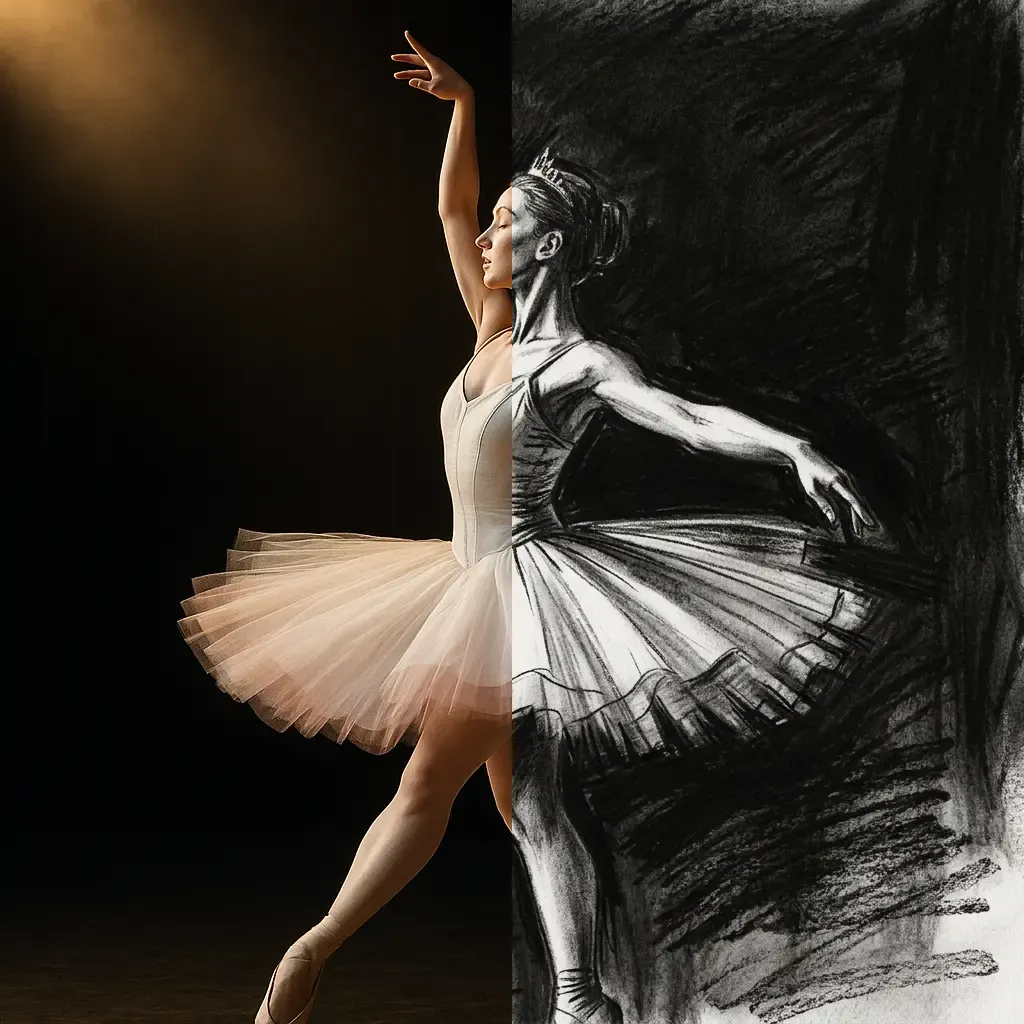
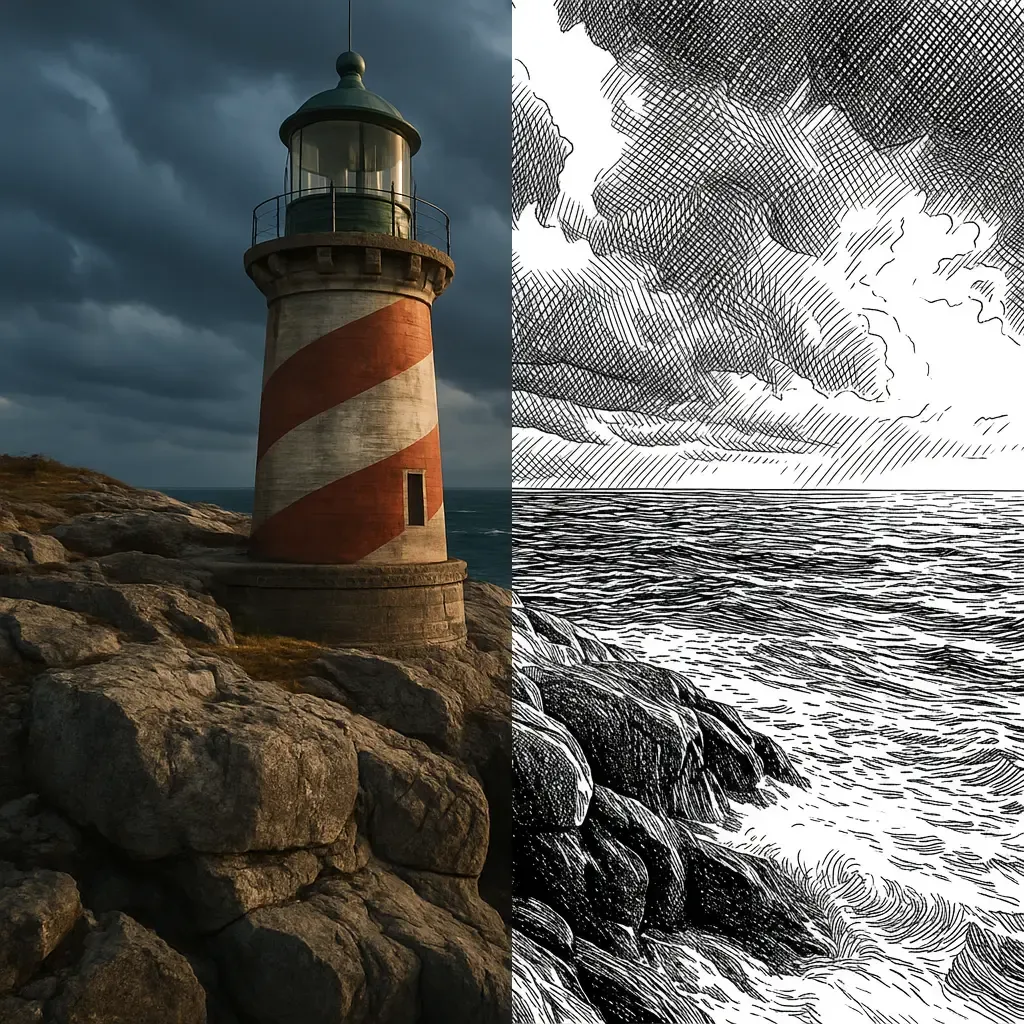
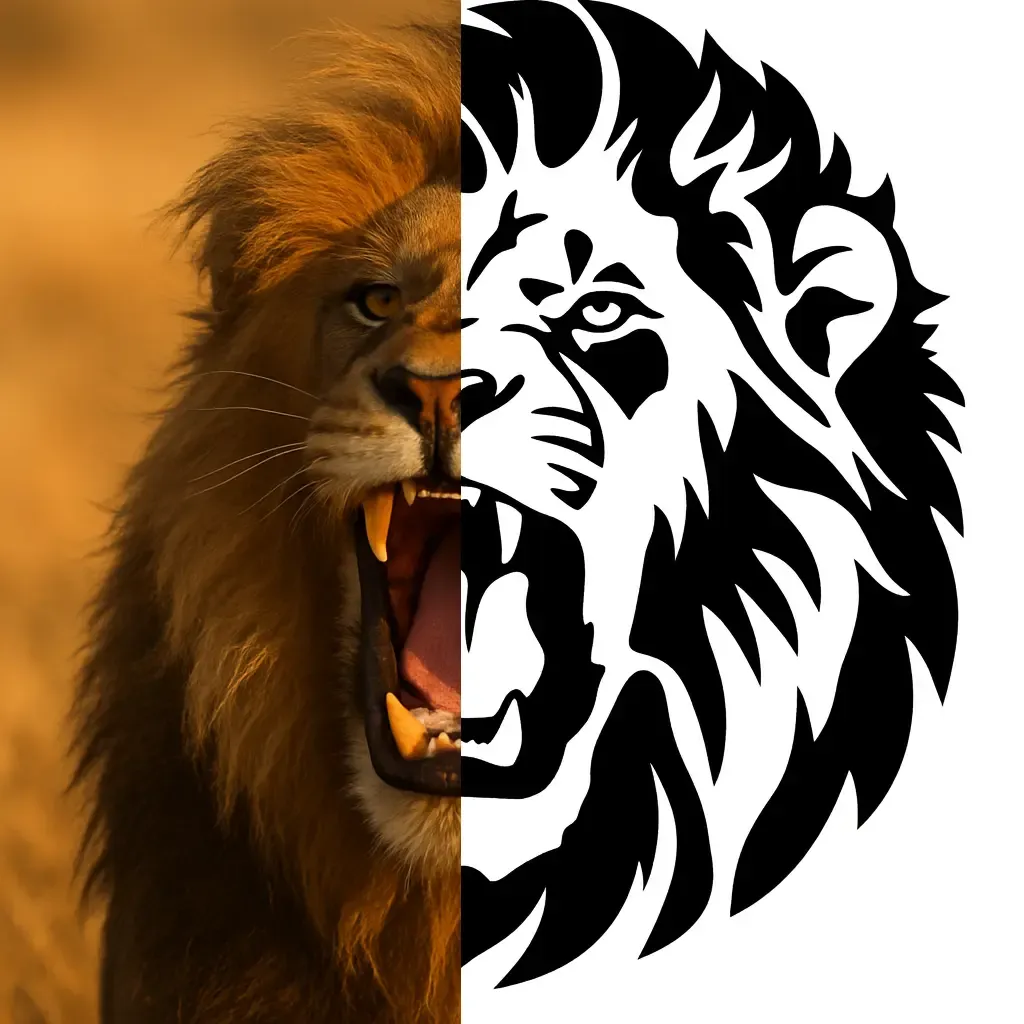
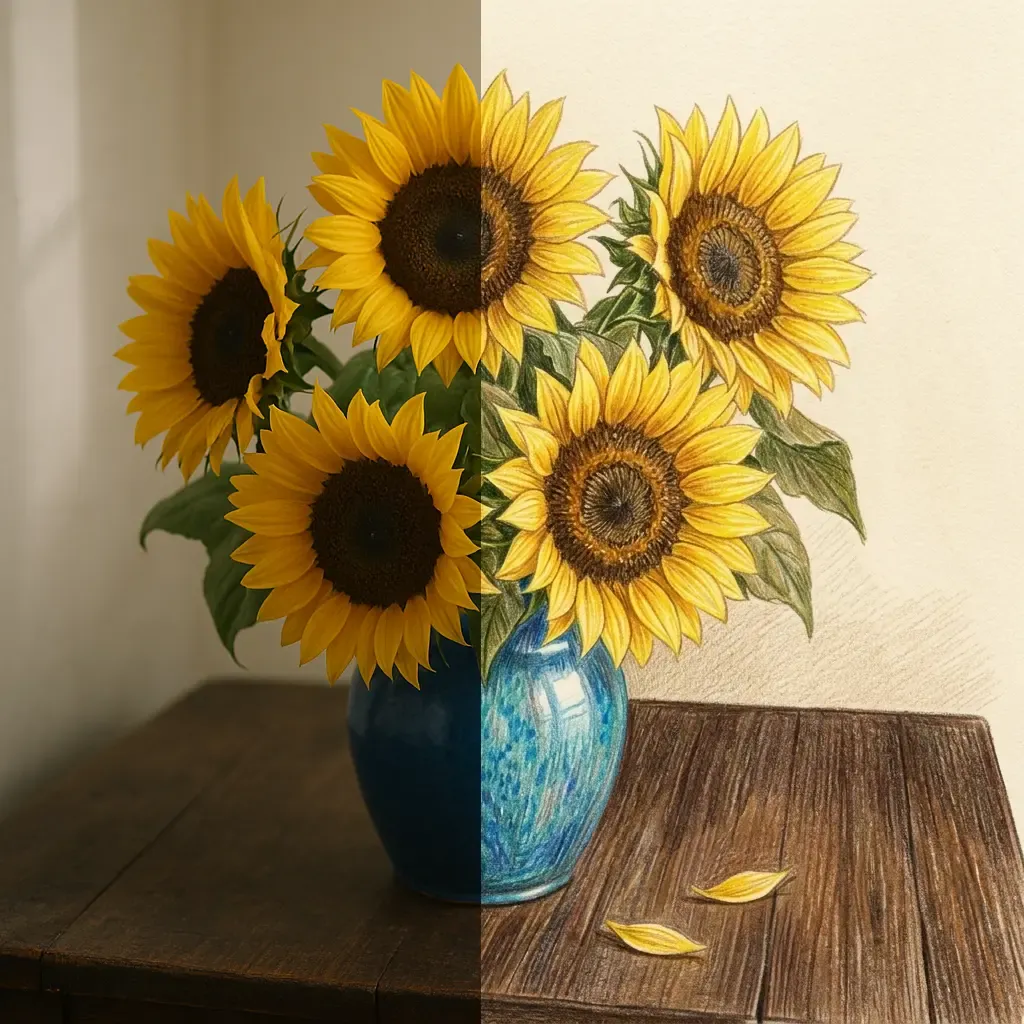
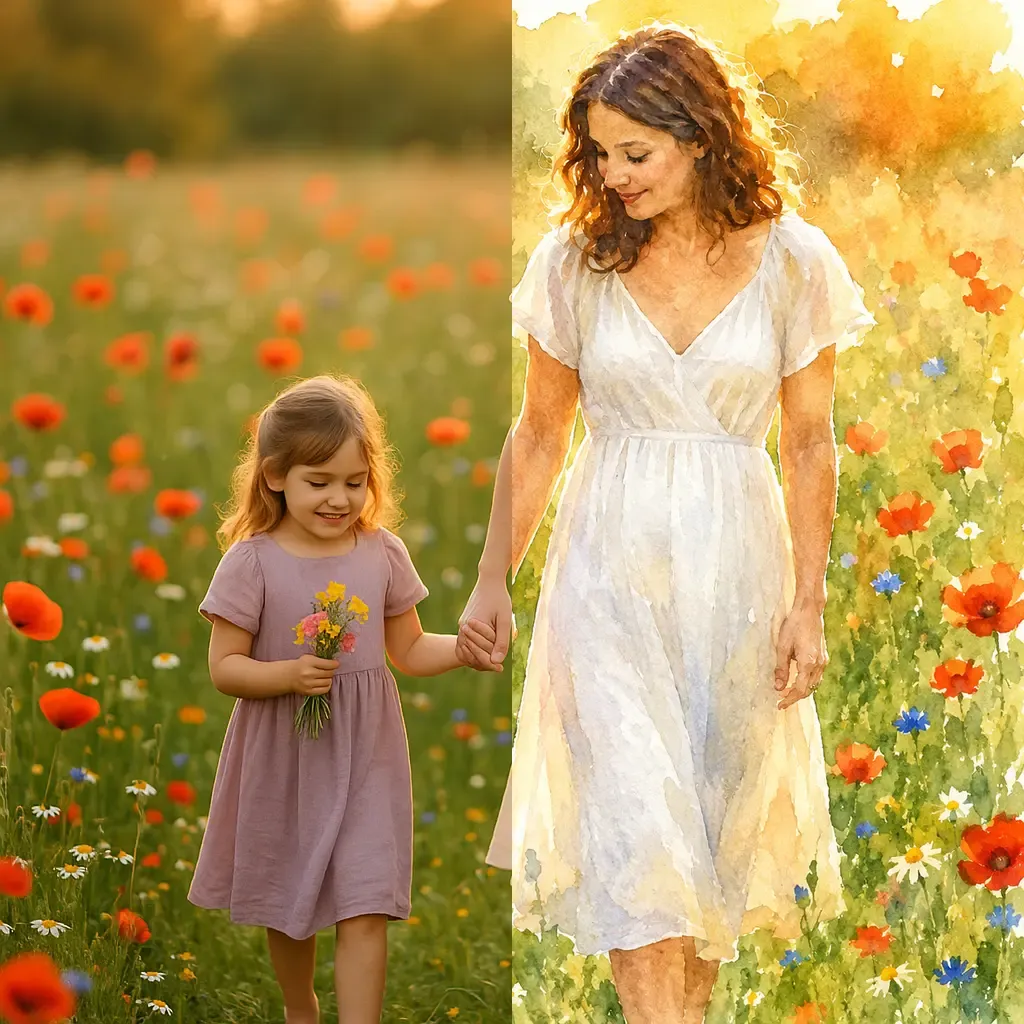
Explore each style page for examples, tips and a live demo.
How to turn a photo into a drawing
Upload a photo
Portraits, pets and landscapes all work — good contrast makes the strokes shine.
Choose a drawing style
Pencil, charcoal, crosshatch, stencil, watercolor… the AI redraws your photo stroke by stroke.
Download or print
Save your drawing in high resolution — frame it, gift it, or use it as a reference.
Frequently Asked Questions
Sketch your photo now
Free to try — see your photo redrawn as a real sketch in seconds.